
Introduction
What the Segmentify Search SDK is, what it does, and how its three main systems work together.
This page explains what the Segmentify Search SDK is, what it does, and how its three main systems work together.
What Is This Product?
Section titled “What Is This Product?”Segmentify Search SDK is a ready-made search experience that gets installed on a customer’s website. It replaces the website’s existing search with something much more powerful.
Once installed, the visitor’s search experience changes completely:
- The search bar becomes smarter. It shows suggestions, recent searches, and popular items as the visitor types.
- The search results page gets a full upgrade. With filters, sorting, product grids, and promotional banners.
The customer does not need to build any of this. Everything is provided by the SDK. The customer only decides which features to turn on and how things should look.
The Three Systems
Section titled “The Three Systems”The SDK is organized into three separate systems. Each one controls a different part of the search experience.
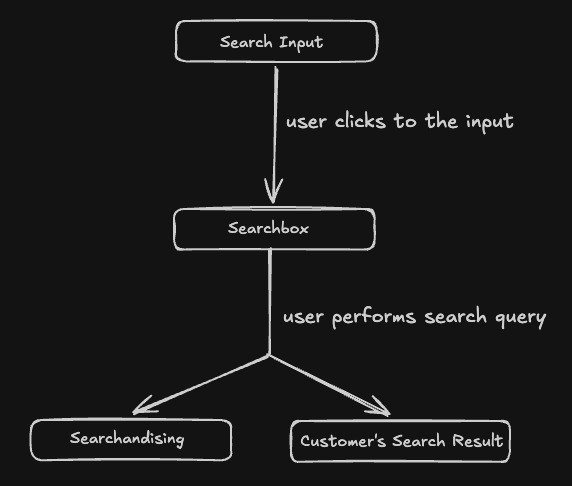
1. Search Input
Section titled “1. Search Input”What the visitor sees: The search bar and search button on the website.
What it does: The SDK takes over the website’s existing search bar. It can either replace it entirely or clone it. This is how the SDK “hooks into” the website. An example might look like from mototas.com.tr. See the red rectangle in the image below? That’s the search bar that the SDK takes over.

2. Searchbox
Section titled “2. Searchbox”What the visitor sees: A popup that appears when they click on or type into the search bar.
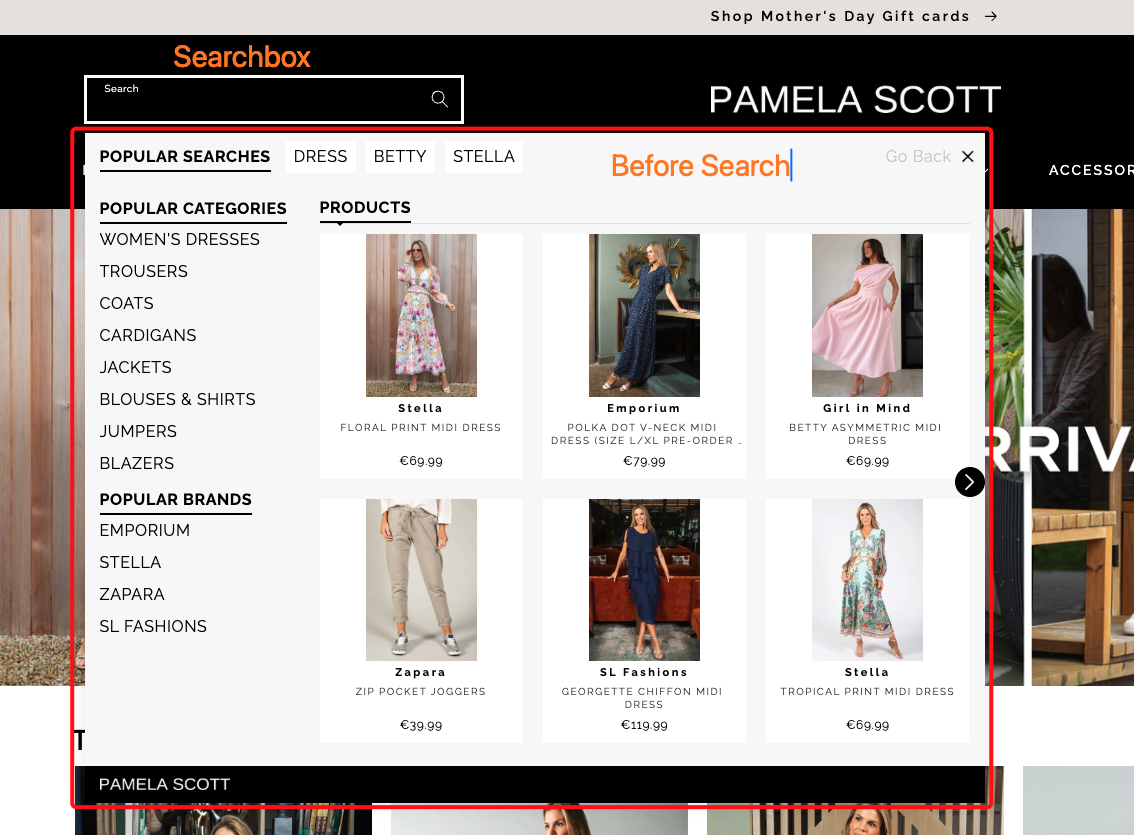
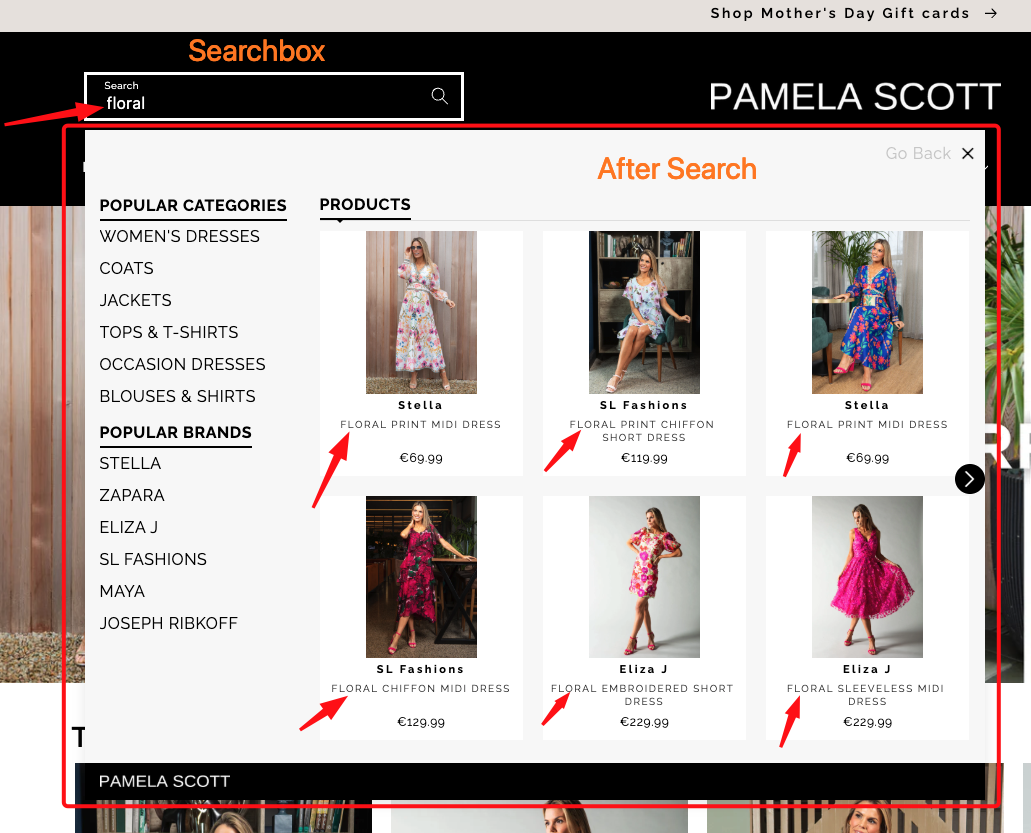
What it does: Before the visitor has typed anything meaningful, the popup shows helpful content like recent searches, popular keywords, top categories, and trending products. It has two modes by default which are “Before Search” and “After Search”.
Before Search is the initial mode and runs when the visitor has not typed anything meaningful. After Search is the mode that runs when the visitor has typed something meaningful.
Once the visitor starts typing, it switches to showing live search results and suggestions. See the example below:
3. Searchandising
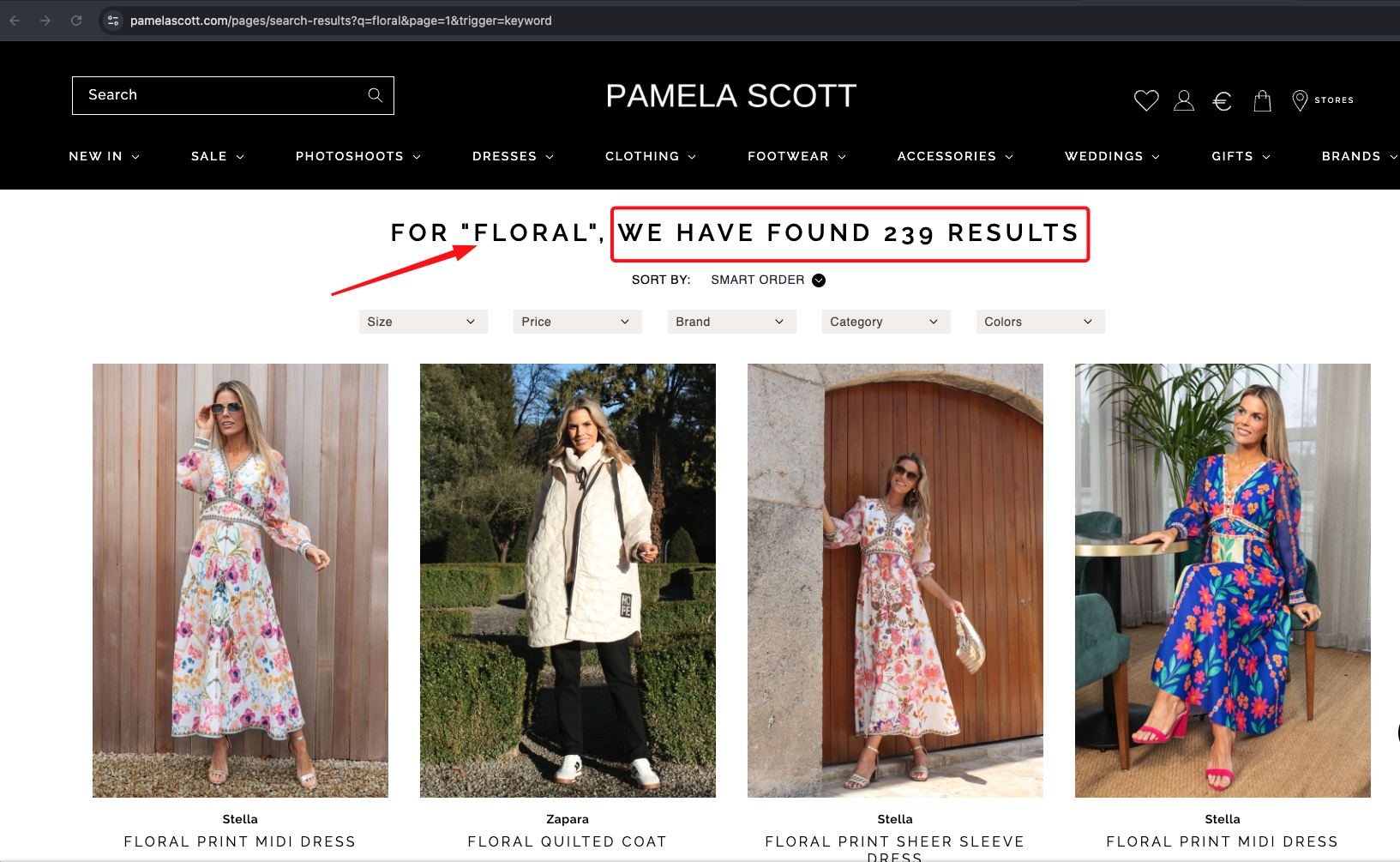
Section titled “3. Searchandising”What the visitor sees: The full search results page that appears after they submit a search.
What it does: This is the main search results page. It shows a grid of products, filters on the side (or in a popup on mobile), sorting options, pagination, banners, and more. This only appears on a specific page of the website (for example, /search).
How They Work Together
Section titled “How They Work Together”Here is a typical flow from the visitor’s perspective:
- The visitor sees the search bar on the website (controlled by Search Input).
- They click on it. A popup appears showing their recent searches and popular items (controlled by Searchbox).
- They start typing. The popup updates to show instant results matching what they typed.
- They either:
- Click on a product in the popup to go directly to that product.
- Click “See All” or press Enter or click the search icon to go to the full results page (controlled by Searchandising).
- On the results page, they can filter by category, brand, price, color, etc. They can sort results by price, popularity, or relevance. They can browse through pages of results.
Mobile vs Desktop
Section titled “Mobile vs Desktop”The SDK handles mobile and desktop separately. Every system has its own settings for mobile and for desktop.
The switch between mobile and desktop is based on a screen width threshold (called the breakpoint). By default, screens narrower than 768 pixels are treated as mobile. Everything wider is desktop.
This means you can show a completely different layout on phones than on computers. For example:
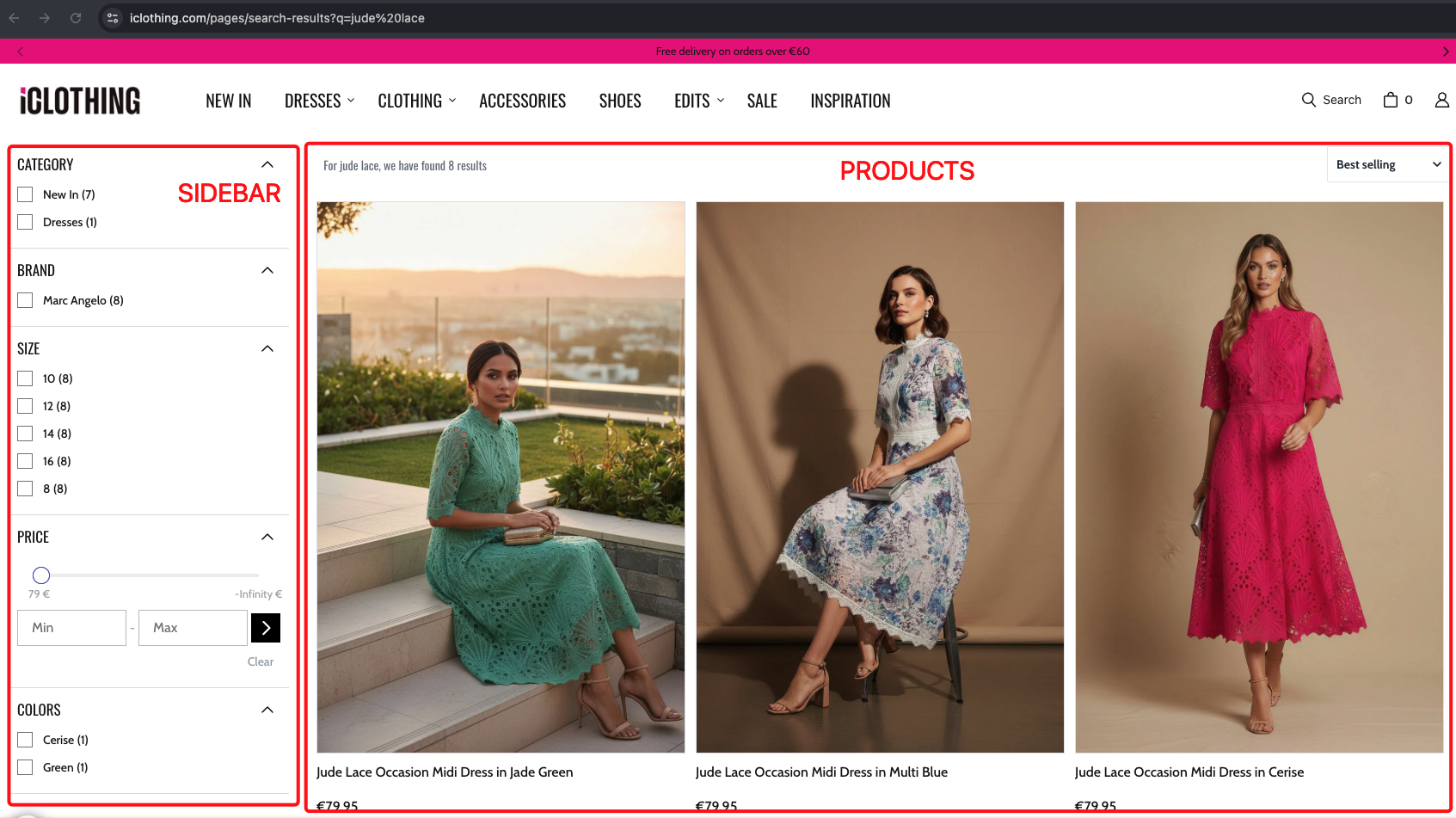
- Desktop: Filters in a sidebar on the left, products on the right.
- Mobile: Filters hidden behind a “Filters” button, products stacked vertically.
Let us show an example of a desktop search results page with sidebar filters:
and now let us show an example of a mobile search results page with filters hidden behind a “Filters” button:
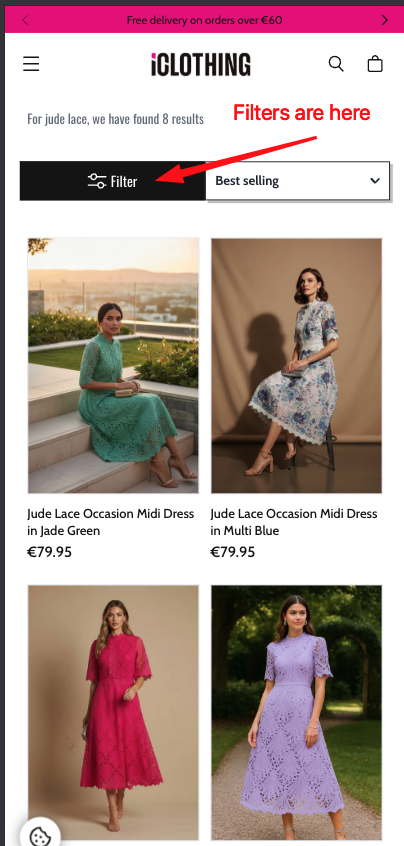
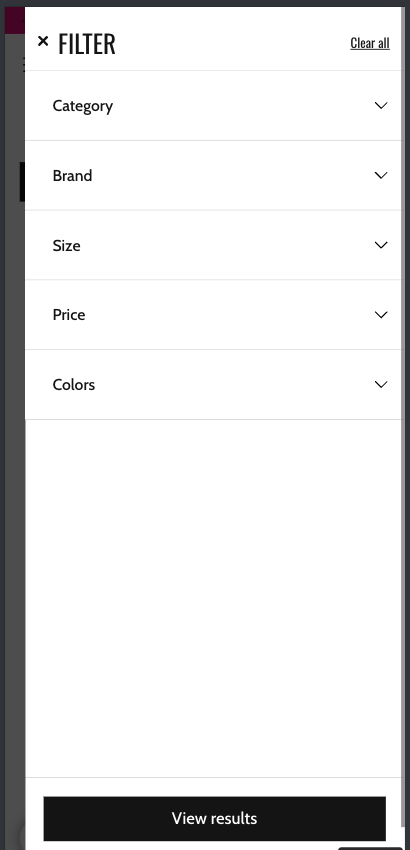
As you can see, the layout is completely different on mobile and desktop. The SDK handles this automatically based on the screen width. It automatically become two step. Because now when you click on to the “Filters” button, it will open a sheet with actual filters:
What the SDK Needs to Work
Section titled “What the SDK Needs to Work”The SDK needs one thing to be present on the website before it can start: the Segmentify main script. This is the core Segmentify tracking and personalization script that most Segmentify customers already have installed.
The SDK waits for this script to load, then starts working. If the main script is not present, the SDK will keep waiting and will not show anything.
Building Blocks
Section titled “Building Blocks”Each of the three systems is built from building blocks. A building block is a reusable piece of the search experience. For example: a product list, a filter panel, a sorting dropdown, or a banner.
You choose which building blocks to include in each system and how to arrange them. The SDK comes with 19 different building blocks that you can mix and match.
For the full list of building blocks and what each one does, see Building Blocks (Components).
Next Steps
Section titled “Next Steps”- To understand how the search bar is taken over, read Search Input.
- To understand the popup experience, read Searchbox.
- To understand the full results page, read Searchandising.